Exploring Yazi: A Powerful Terminal-Based File Manager for Linux
If you spend most of your time in the Linux terminal, you know the charm of combining GUI comfort with command-line efficiency. I stumbled upon a tool that perfectly bridges this gap: Yazi, a terminal-based file manager. Written in Rust, it offers asynchronous operations, image previews, and code highlighting—all within the terminal. Here’s everything you need to know about this impressive utility, answered in a Q&A format.
What Is Yazi and Why Should You Care?
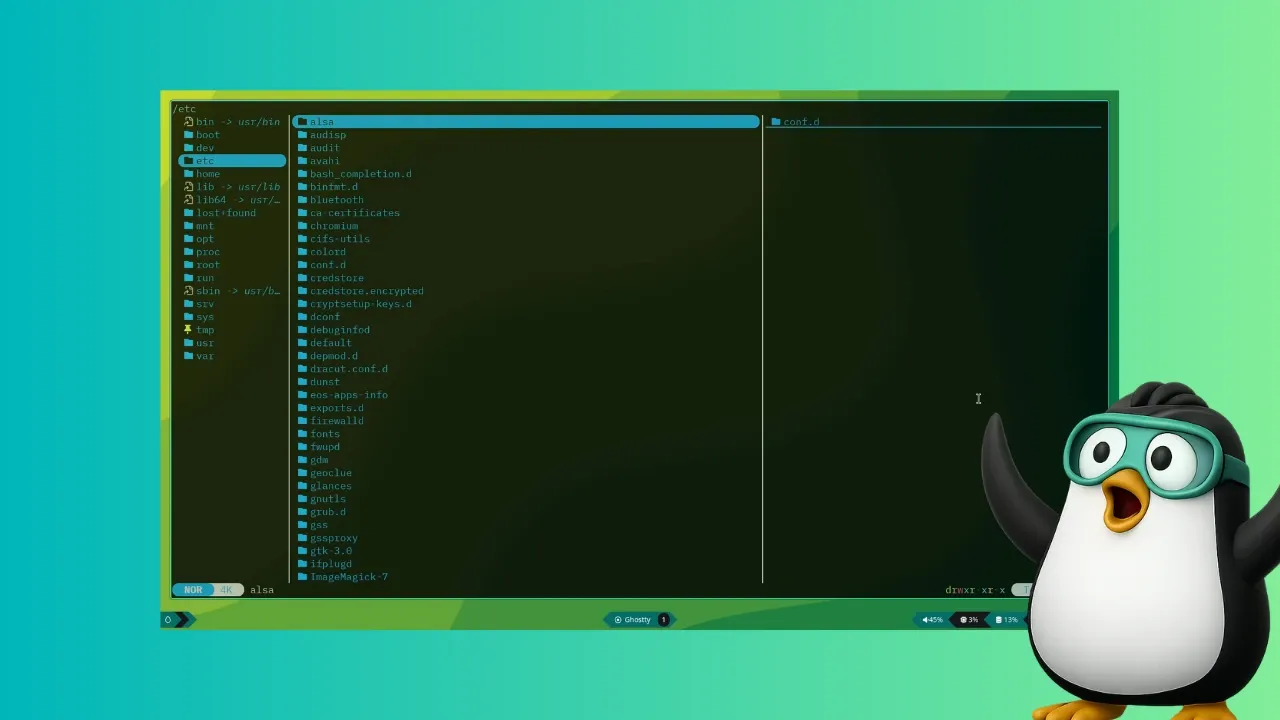
Yazi is a modern file manager that runs entirely in your terminal. It’s designed for users who love the power of the command line but miss the visual comfort of graphical file explorers. Built with Rust, Yazi uses full asynchronous support to keep operations fast, even with large directories. It also supports multiple image protocols, scrollable previews, and built-in code highlighting. For anyone who lives in the terminal, Yazi can make file navigation feel as seamless as using Nautilus or Nemo—without leaving the command line. It’s not just a novelty; it’s a practical tool that impressed me enough to replace my usual ls and cd routine.
How Does Yazi Differ from Traditional Terminal Navigation?
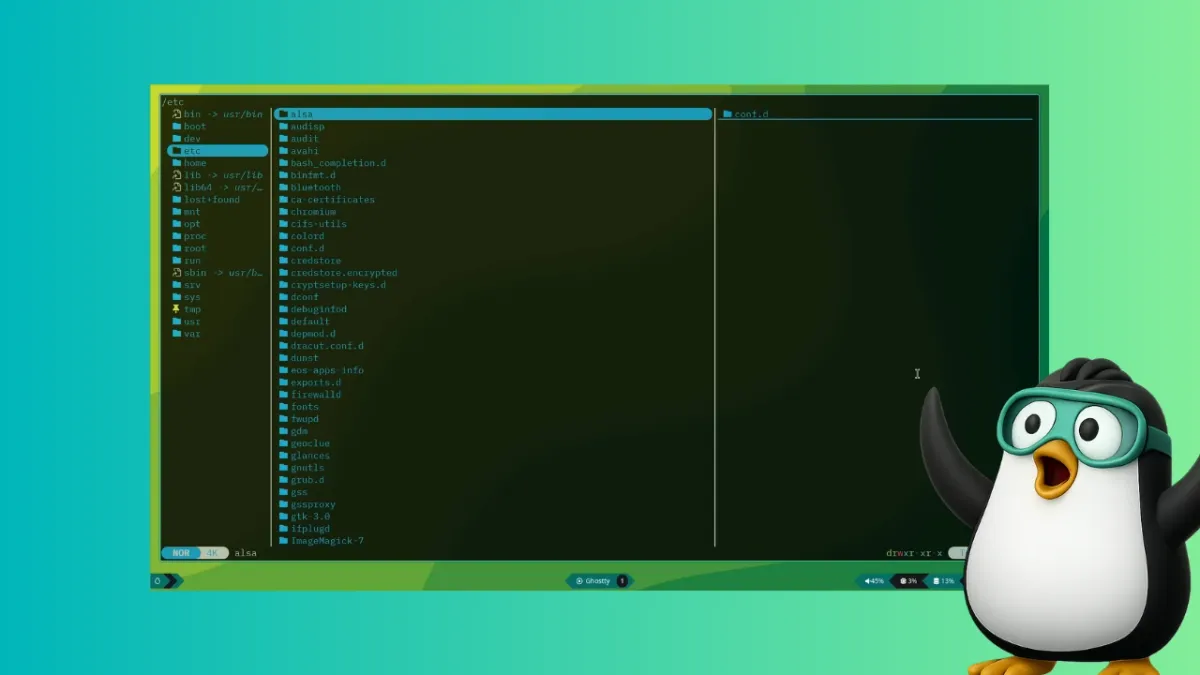
The classic way to browse files in the terminal involves typing ls to list contents, cd to change directories, and using cat or other commands to view files. Yazi replaces that with an interactive, keyboard-driven interface. You navigate with arrow keys or vim-like shortcuts, preview files without opening them, and search instantly. It’s a bit like using a lightweight GUI file manager but rendered in ASCII or images (if your terminal supports it). For me, this was a huge productivity boost: I could browse, copy, move, and preview files without remembering dozens of commands. It’s still the terminal, but with the convenience of visual browsing.
What Are the Key Features of Yazi?
Yazi packs several standout features that make it more than just a fancy ls replacement:
- Full asynchronous support: CPU tasks are spread across multiple threads, keeping the interface responsive even with huge directories.
- Image previews: Built-in support for multiple image protocols (e.g., Sixel, Kitty, iTerm2) lets you see thumbnails directly in the terminal.
- Code highlighting and image encoding: Yazi can highlight syntax for many programming languages and even encode images for preview.
- Scrollable previews: Preview panels for text, PDFs, and other files can be scrolled without opening a separate viewer.
- Powerful file search and manipulation: Quick search, batch rename, copy, move, delete—all customizable with keybindings.
How Do You Install Yazi on Linux?
Installation is straightforward for many Linux distributions. Yazi is available in the official repositories of Arch Linux (via pacman -S yazi), Void Linux, and openSUSE Tumbleweed. For other distros, you can install it from source or use package managers like Cargo (Rust’s package manager) if you have Rust installed. To get full use of Yazi’s features, you may also need additional tools like fd for file finding, fzf for fuzzy search, or chafa for image previews. Check Yazi’s documentation for a complete list of optional dependencies. Once installed, simply run yazi in your terminal to launch it.
Who Benefits Most from Using Yazi?
Yazi is ideal for Linux users who spend a significant portion of their work in the terminal—developers, system administrators, and power users. If you already use tools like Vim, Tmux, or other terminal-based utilities, adopting Yazi will feel natural. It’s also great for those who want to minimize reliance on graphical file managers like Nautilus or Dolphin without sacrificing usability. You don’t have to be a hardcore terminal-only user; even if you occasionally switch between GUI and CLI, Yazi can streamline file operations. For example, I found it especially helpful when writing code: Yazi lets me navigate project files, preview scripts with syntax highlighting, and quickly perform batch operations—all without ever leaving my terminal session.
Can Yazi Replace Graphical File Managers?
For many terminal-heavy workflows, yes, Yazi can effectively replace graphical file managers like Nautilus or Nemo. Its asynchronous design ensures smooth performance even with large numbers of files, and the built-in previews eliminate the need to open separate apps. However, it’s not a perfect replacement for everyone. If you rely on drag-and-drop, extensive thumbnail databases, or complex GUI features, you might still need a traditional file manager. But for browsing, sorting, and manipulating files—especially in development environments—Yazi offers a compelling alternative. In my experience, once I got used to it, I rarely felt the need to open Nautilus again. Yazi doesn’t just imitate a GUI; it enhances the terminal experience with power and elegance.
Related Articles
- Runpod CEO Defies VC Norm: Community Funding Powers Global Growth
- 10 Lessons from Runpod: Why Community Funding Trumps Venture Capital
- Subquadratic's 1,000x AI Efficiency Claim: What It Means and Why Experts Are Skeptical
- Braintrust Security Breach: 8 Essential Insights Every Customer Needs Now
- How to Launch and Nurture a Developer Community That Lasts (Even with AI on the Rise)
- Cisco Acquires Astrix Security to Secure Non-Human Identities in AI Era
- Braintrust Breach: What AI Developers Need to Know About API Key Security
- The Trust-First Approach to Monetizing Attention: A Founder's Guide