Mastering Google Maps: A Step-by-Step Guide to Overcoming Its Hidden Flaw
Introduction
Google Maps has become the default navigation app for millions, and with the recent integration of Gemini AI, its features have been elevated, offering smarter suggestions and more intuitive interactions. Yet beneath this polished surface lies a significant flaw that most users encounter daily without realizing it: over-reliance. Many blindly follow every turn-by-turn instruction, ignoring real-world cues, alternative routes, and even obvious errors. This guide will walk you through recognizing this hidden issue and developing smarter habits to use Google Maps effectively—without falling into the trap of complacency.
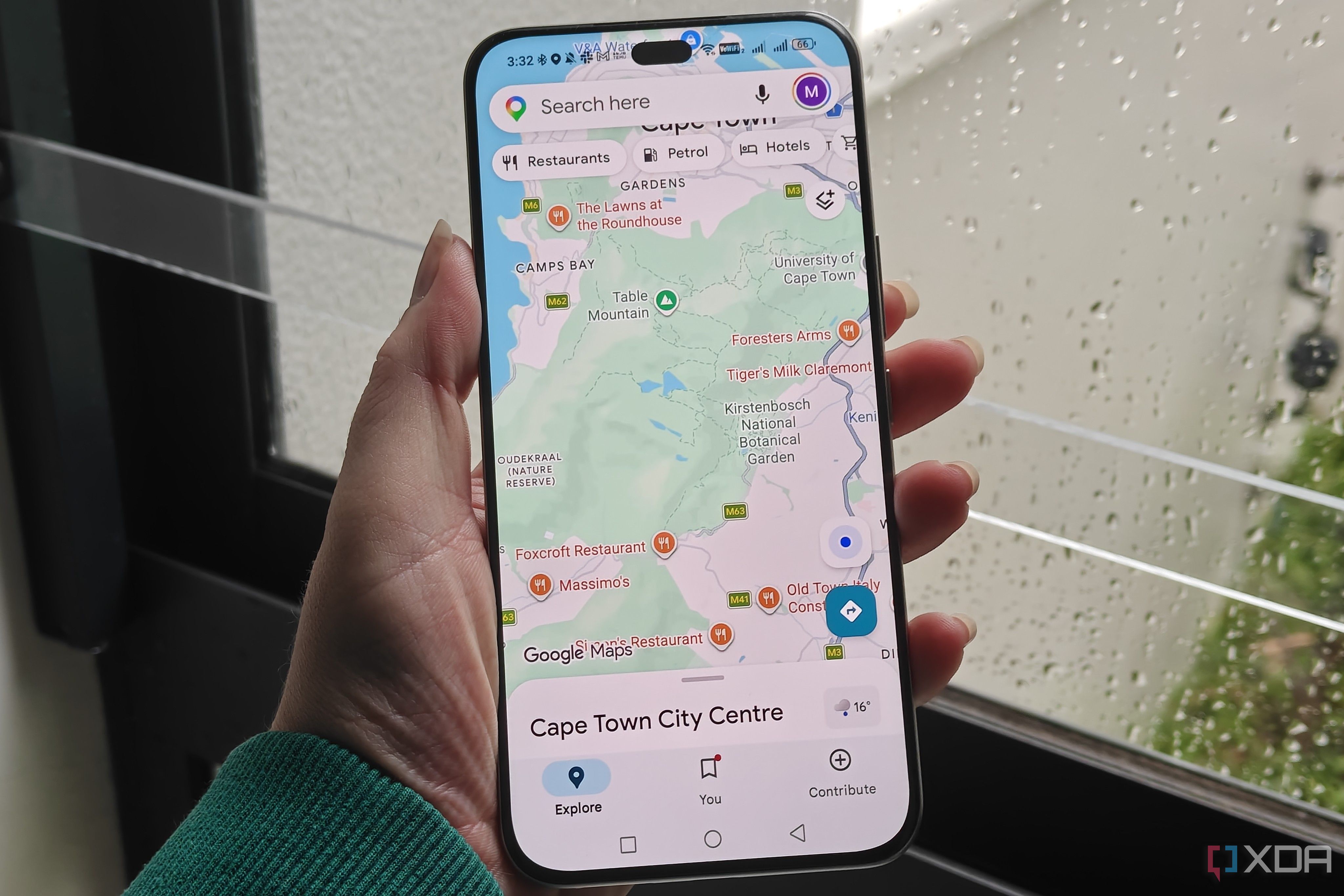
What You Need
- A smartphone or tablet with the latest version of Google Maps installed
- A stable internet connection (cellular or Wi-Fi)
- Basic familiarity with Google Maps interface
- Willingness to step back and question the app’s suggestions
Step-by-Step Instructions
Step 1: Acknowledge the Blind Trust Trap
The first step is understanding the flaw itself. Google Maps often presents its route as the single best option, but in reality, it may be outdated, miss local shortcuts, or be influenced by algorithmic biases (e.g., favoring faster roads over scenic or safer ones). The Gemini integration can make suggestions feel more authoritative, reinforcing blind trust. To overcome this, consciously remind yourself that Maps is a tool, not an infallible guide.
Step 2: Cross-Check the Suggested Route with Common Sense
Before departing, take 10–15 seconds to look at the overview of your route. Ask yourself:
- Does this route pass through known congestion zones at this time of day?
- Are there obvious closures or construction that Maps might have missed?
- Does the alternate route shown look quicker based on my local knowledge?
Use the Alternate Routes button (tap the route summary card) to compare times and distances. Never accept the default without a quick mental check.
Step 3: Leverage Street View and Satellite Imagery
One of Google Maps’ most underutilized features is Street View. If a suggested turn or destination looks unclear, drop a pin and tap “Street View” to preview the actual intersection or building. This is especially helpful for unfamiliar areas. Satellite view can also reveal hidden driveways, parking lots, or road alignments that the standard map may not highlight. To access: tap the map layer icon (stacked squares) and select “Satellite”.
Step 4: Double-Check with a Second Navigation App
No app is perfect. Use an alternative like Waze, Apple Maps, or HERE WeGo for a second opinion on major trips. Compare estimated times and routes. If the apps disagree significantly, investigate why—often the difference reveals a real-world condition (e.g., a new turn restriction) that one app has but the other doesn’t. This habit breaks the monopoly of a single source.
Step 5: Interpret Live Traffic and Time Estimates Critically
Google Maps’ time estimates are based on historical data and real-time probes, but they can be skewed. A “+5 min” indication might not account for a sudden accident that happened two minutes ago. Similarly, the app’s “green/yellow/red” traffic overlay only updates every few minutes. During navigation, glance at the road ahead, not just the screen. If you see brake lights but Maps shows green, trust your eyes.
Step 6: Keep the App and Map Data Updated
Outdated maps are a major source of flaws. Ensure you have the latest version of Google Maps by checking your phone’s app store weekly. Also download offline maps for areas with poor reception—but remember that offline maps may be weeks old. To update, go to Settings > App info > Google Maps (Android) or App Store (iOS) and check for updates.
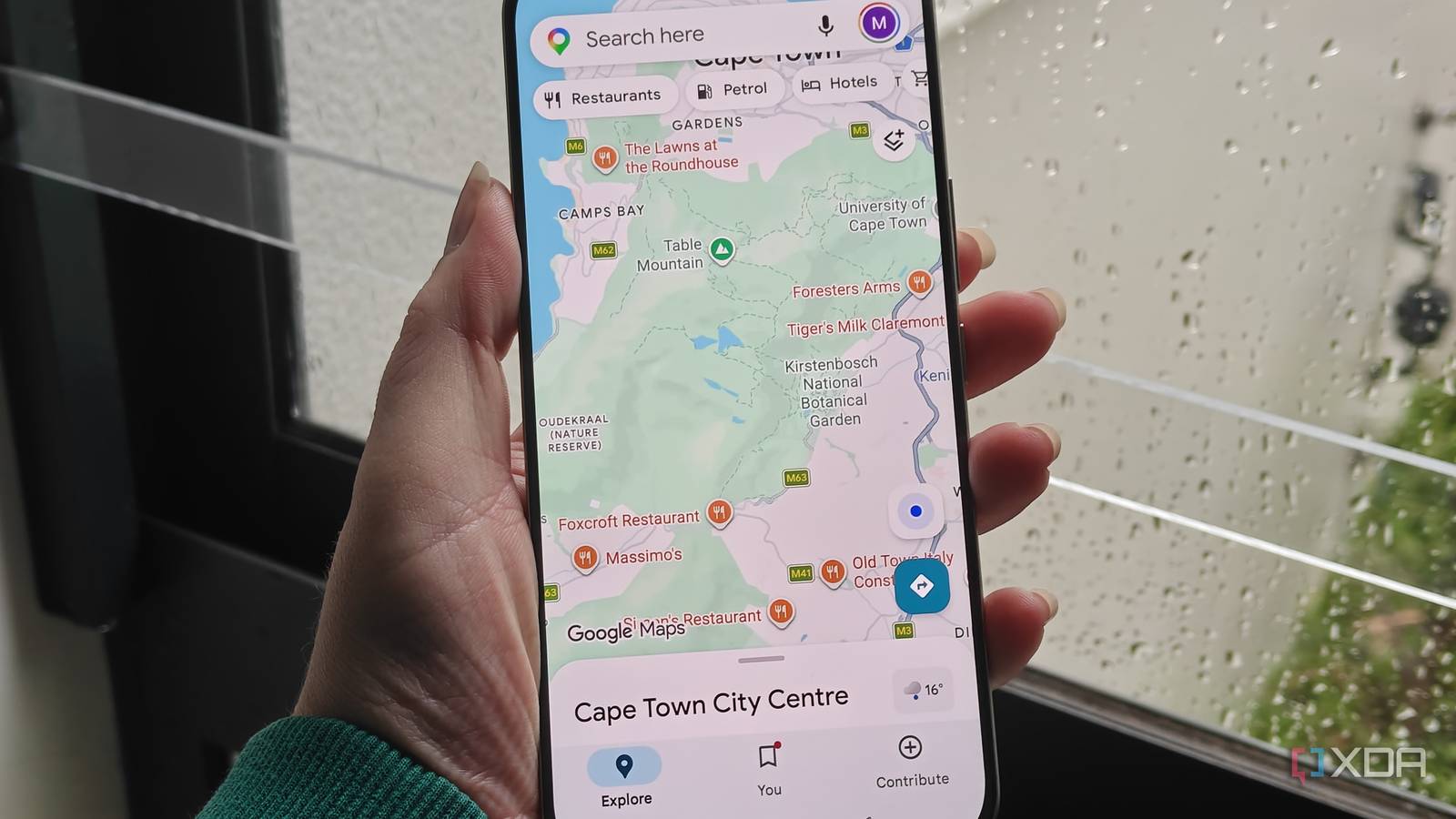
Step 7: Use Gemini Features Wisely (Not Blindly)
Gemini integration brings conversational queries and predictive suggestions (e.g., “when to leave” for your calendar events). While convenient, these can lull you into a false sense of certainty. For instance, Gemini might assume your usual commute time without accounting for today’s anomaly. Use Gemini to ask follow-up questions like “Is there a faster route now?” rather than accepting its initial suggestion. Always confirm with a manual route check.
Step 8: Develop a Backup Plan
Even with all precautions, Google Maps can fail—losing signal, displaying wrong coordinates, or rerouting you into trouble. Always have a physical map or a written note of major landmarks for your destination. Tell someone your planned route. Carry a phone charger and consider downloading an offline version of your entire trip using the “Offline maps” feature (select area, tap Download). This ensures you can still navigate even when data drops.
Additional Tips for Smarter Navigation
- Read signs, not just the screen. Street signs, lane markings, and parking signs are the ground truth. Use Street View before you go to familiarize yourself with local signage.
- Check for reported issues. In the app, tap the “Reports” icon (bottom right) to see user-reported road closures, speed traps, and hazards. This adds a human layer to the algorithm.
- Practice critical thinking. If the route seems strange (e.g., sending you down a one-way alley), question it. Your intuition often catches what the app misses.
- Disable auto-rerouting sometimes. Go to Settings > Navigation settings and turn off “Auto-reroute” if you want to stick to a planned route, especially in areas you know well.
- Update your preferences. Set your vehicle type (car, bike, etc.) and avoid tolls or ferries as needed. Inaccurate preferences can lead to poor route suggestions.
- Use the “Start” button carefully. Don’t rush to press “Start” before reviewing the entire route. Tap the route card first to see a full list of turns.
By following these steps, you’ll transform Google Maps from a mindless guide into a powerful assistant that you control. The flaw of over-reliance diminishes when you become an active participant in navigation—questioning, verifying, and adapting. Happy and safe travels!
Related Articles
- GPT-5.5 Matches Claude Mythos in Security Vulnerability Discovery: UK AI Security Institute Report
- 6 Key Insights into Anthropic's New Programmatic Credit Pool for Agentic AI Tools
- GPT-NL: The Netherlands' Bold Step Toward European AI Independence
- Anthropic Overtakes OpenAI in Business AI Adoption — But Three Major Threats Could Undermine Its Lead
- Regain Your Privacy: A Step-by-Step Guide to Opting Out of AI Chatbot Training Data Use
- Google's Gemini Intelligence vs Apple's Siri: AI Promises Under Scrutiny
- Building High-Performance LLM Infrastructure: Cloudflare’s Approach to Separating Input and Output Processing
- Unlocking Agentic AI in Xcode 26.3: A Step-by-Step Guide