Master These 10 Hidden Voice Commands to Reclaim Hours Every Week
Introduction
Your voice assistant is far more capable than you realize. While most people use it for simple tasks like weather checks or music playback, a handful of lesser-known commands can dramatically streamline your day. In this guide, you'll uncover ten powerful voice commands that many users overlook—each one designed to save you minutes or even hours each week. By integrating these into your routine, you'll automate repetitive tasks, stay organized, and free up mental energy for what truly matters.
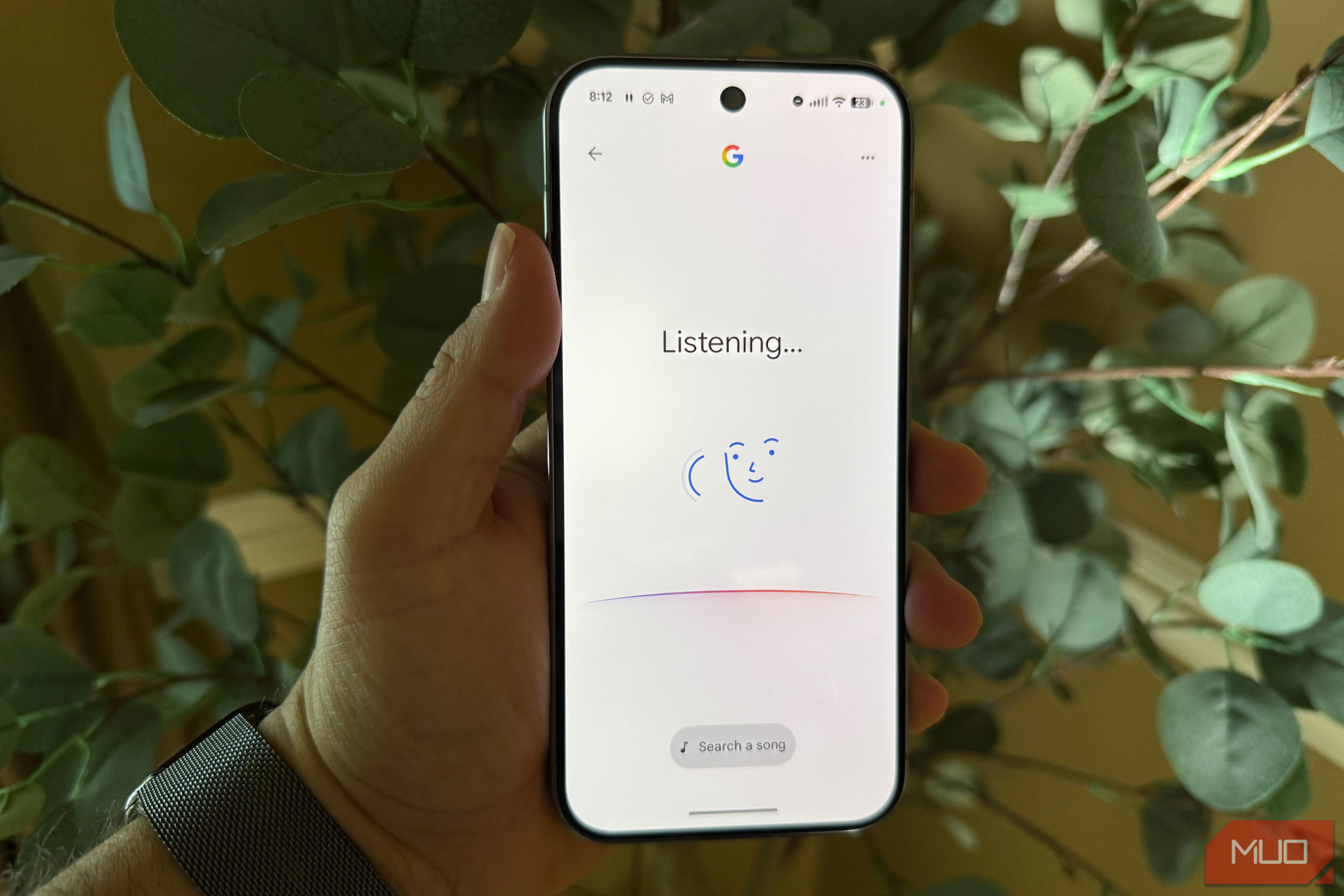
What You Need
- A voice assistant device or app: Google Assistant (Android), Siri (Apple), or Amazon Alexa (Echo devices). Ensure it's updated to the latest version.
- An internet connection for cloud-based commands.
- Optional: A linked account for services like Google Calendar, Apple Calendar, Spotify, or smart home devices.
- A few minutes to set up and practice each command.
Step-by-Step Guide to Time-Saving Voice Commands
Step 1: Create Custom Routines for Daily Tasks
Command examples: "Hey Google, good morning" or "Alexa, start my day"
Most voice assistants let you build routines—sequences of actions triggered by a single phrase. For instance, create a morning routine that turns on lights, reads the news, starts coffee, and tells you your schedule. To set this up:
- Open your assistant's app (Google Home, Alexa app, or Shortcuts for Siri).
- Navigate to Routines (or Scenes for Apple Home).
- Add a trigger phrase (e.g., "Good morning").
- Queue actions: adjust thermostat, play a podcast, set a timer for breakfast, and read calendar events.
- Save and test. This single command replaces multiple manual steps, saving 5–10 minutes each morning.
Step 2: Use Voice for Quick Math and Conversions
Command examples: "What's 15% of 200?" or "Convert 5 miles to kilometers"
Instead of opening a calculator or conversion app, ask your assistant directly. It can handle everything from tip calculations to currency conversions. For instant answers, just speak naturally. This eliminates app-switching and mental math errors.
Step 3: Set Recurring Reminders for Overlooked Tasks
Command examples: "Remind me to water the plants every Tuesday and Saturday at 10 AM" or "Remind me in 2 hours to take a break"
Many users only set one-off alarms, but recurring reminders are a game-changer for chores, medication, or work habits. Use natural language: "Remind me to backup my computer on the first Monday of every month." Your assistant will prompt you, saving you from forgetting regular tasks.
Step 4: Chain Multiple Commands with "and"
Command examples: "Set a timer for 10 minutes and play my workout playlist"
Most assistants accept compound requests. You can say, "Turn on the living room lights and set the thermostat to 72 degrees." This reduces the number of interactions. Practice speaking two or three connected actions in one breath.
Step 5: Control Smart Home Devices with Scenes
Command examples: "Alexa, movie time" (dim lights, lower blinds, turn on TV) or "Hey Siri, I'm leaving" (lock doors, turn off lights, arm security system)
Scenes are preset combinations for your smart home. Name them intuitively and activate them by voice. Setup usually involves grouping devices in the assistant's app. This eliminates tapping multiple switches and saves 30–60 seconds per routine.
Step 6: Dictate and Send Texts or Emails Hands-Free
Command examples: "Tell Mom I'll be there in 10 minutes" or "Send an email to John with subject 'Meeting' and body 'See you at 3 PM'"
Drafting messages by voice is significantly faster than typing. Once sent, you've avoided typing and context-switching. For emails, specify recipients exactly as they appear in your contacts. This command is especially useful while driving or cooking.
Step 7: Use Broadcast Announcements Across Devices
Command examples: "Broadcast dinner's ready" or "Tell upstairs it's time to get up"
If you have multiple smart speakers, broadcast sends a message to all of them. This replaces yelling or texting family members. It's perfect for coordinating in a multi-room home.
Step 8: Quick Timers and Alarms with Labels
Command examples: "Set a timer for 15 minutes for pizza" or "Set an alarm for 6:30 AM called 'Gym'"
Labeling timers helps you track multiple cooking tasks. When a timer goes off, your assistant announces the label. This reduces confusion and prevents burning food. For alarms, labels also help when reviewing your schedule.
Step 9: Voice Search Your Calendar and Notes
Command examples: "What's on my calendar for Friday?" or "Show me my grocery list"
Instead of opening apps, ask your assistant to retrieve information. It can read events, notes, or lists aloud. You can also add items by voice: "Add milk to my shopping list." This saves seconds each time, adding up to minutes daily.
Step 10: Enable and Use Follow-Up Mode for Multi-Step Requests
Command examples: "What's the weather?" then (without saying "Hey Google") "And what about tomorrow?"
Google Assistant and Alexa offer a follow-up mode (or brief mode) where you can ask successive questions without repeating the wake word. Enable this in settings. This speeds up multiple queries—perfect for research or planning.
Conclusion & Tips for Success
Start with two or three commands that directly address your biggest time-wasters. For instance, if mornings feel chaotic, build a routine. If you often forget to take breaks, set recurring reminders. Once these become habit, layer on more commands gradually.
- Test every command before relying on it. Some assistants respond differently to phrasing variations.
- Use exact names for contacts, devices, and playlists to avoid misinterpretation.
- Create a cheat sheet of your top ten commands and put it near your speaker or phone for the first week.
- Combine with smart home actions for maximum effect—voice commands are just the beginning.
- Keep privacy in mind: review your voice history periodically and delete recordings if desired.
By investing a few minutes to set up these hidden features, you'll reclaim hours every week. Your voice assistant is more than a novelty; it's a productivity tool waiting to be unleashed.
Related Articles
- Facebook Unveils AI-Powered Search Overhaul for Groups to Unlock Community Wisdom
- Mastering Core Web Vitals: A Step-by-Step Guide for Real-World Performance
- iPhone 18 Pro CAD Leak Hints at Smaller Dynamic Island—But Source Raises Doubts
- Unlocking Community Knowledge: Facebook’s Enhanced Search with Hybrid Retrieval and AI Evaluation
- Spotify Unveils Multi-Agent AI Architecture to Revolutionize Ad Targeting
- Why System Tools Still Feel Like a Chore: Rethinking UX for Maintenance Software
- Unlocking Interoperability: How to Bridge Mastodon, Bluesky, and the Fediverse
- BlackFile Vishing Extortion: A Complete Q&A Guide to UNC6671's Campaign